


• Closing all open trades with one click
• Closing all BUY positions with one click
• Closing all SELL positions with one click
• Closing all PROFIT positions with one click
• Closing all LOSS positions with one click
• Deleting all BUY positions with one click
• Deleting all SELL positions with one click
• Deleting all the orders with one click
• Closing of all positions when a specified profit is reached.
• Closing of all positions when a specified loss is reached
https://www.mql5.com/en/market/product/75451?source=Site+Profile+Seller
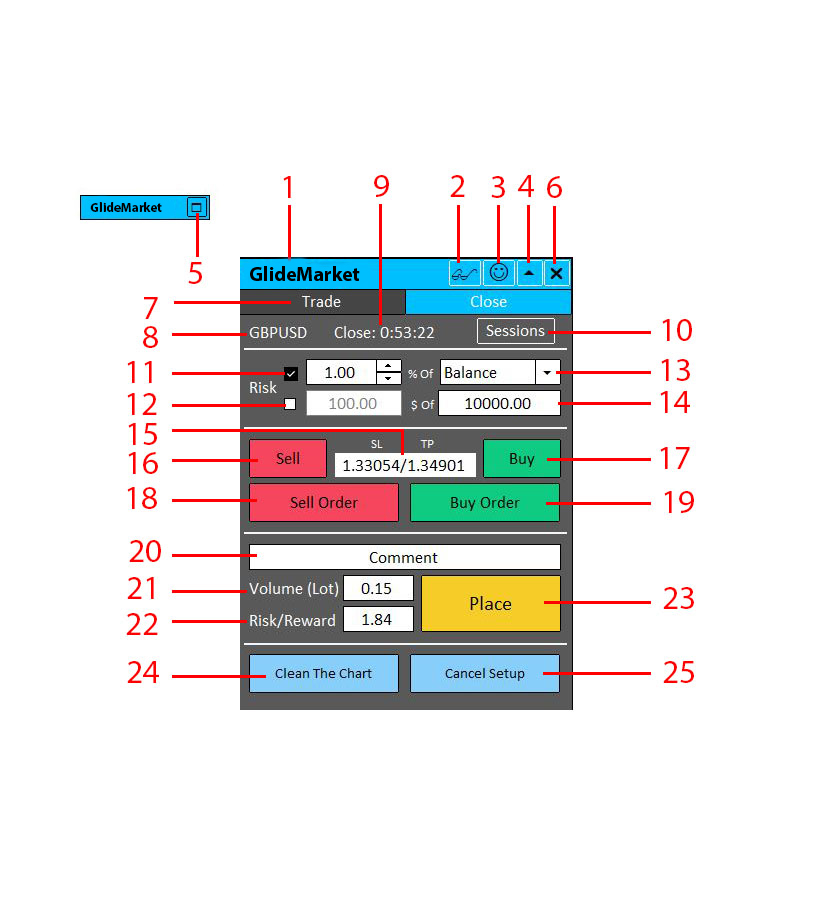
1- Program name
2- Zoom in/out
3- shows the status of connection to the program or internet
4- Minimize/expand of the panel
5- Minimized panel
6- Close panel button
7- Trade Tab which includes order management and risk management options
8- Symbol of the current chart
9- shows the time left until the current candle stick be closed.
10- graphically sets 4 important trading sessions of the day like Sydney, Tokyo, London and New York which shows the working time of the banks in each country.
11- Risk entry in which traders can enter the percentage per trade.
12- Risk entry in which traders can enter the amount of currency.
13- Select whether the risk be calculated based on your balance or equity.
14- the amount of balance/equity you have in your account.
15- the price of Stop Loss and take profit that trader specifies graphically on the chart
16- Sell Button. when press this button you can set your sell position with the help of graphical control lines.
17- Buy button. when press this button you can set your buy position with the help of graphical control lines.
18- sell order button. same as sell button when you press this button you can set your sell order.
19- Buy order button. same as buy button when you press this button you can set your buy order.
20- you can write a comment in any part of the trade and document it.
21- display the accurate calculation of the volume automatically based on your specified risk and STOP LOSS.
22- displays the calculation of risk/reward by division of your net profit (reward) by the price of your maximum risk.
23- place your order easily by hitting the PLACE button.
24- Clean the chart button. when you press this button all the grayed out orders that you have made will be cleaned.
25- cancel setup. before placing your order whenever you want to delete all the actions you have made in the order management panel you can press this button.
https://www.mql5.com/en/market/product/75451?source=Site+Profile+Seller
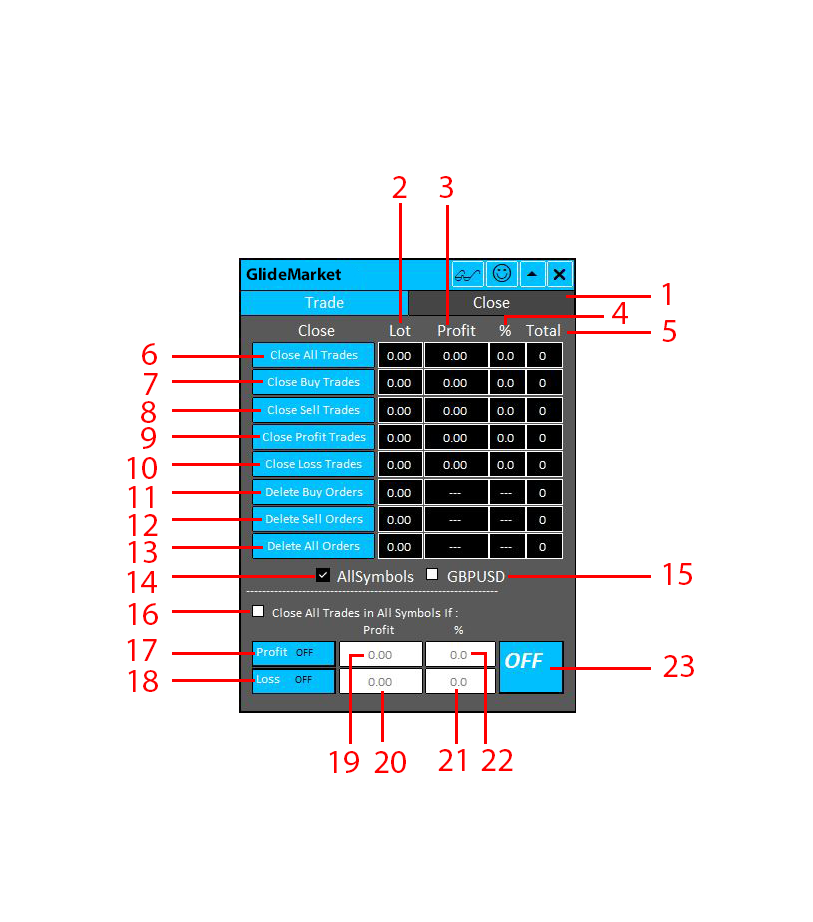
1- close tab in where you are able to manage all the open positions.
2- in the lot column you can monitor the sum of the lots according to its relevant field in the blue rectangle.
3- in the profit column you can monitor the amount of profit and loss of the trades according to its relevant field in the blue rectangle
4- in this column you can monitor the percentage of the profit and loss of your balance.
5- in this column you can see the total number of your open trades according to its relevant field in the blue rectangle.
6- Closing all open trades with one click
7- Closing all BUY positions with one click
8- Closing all SELL positions with one click
9- Closing all PROFIT positions with one click
10- Closing all LOSS positions with one click
11- Deleting all BUY orders with one click
12- Deleting all SELL orders with one click
13- Deleting all the orders with one click
14- by checking this box all the symbols you are trading with will be calculated in the above fields.
15- by checking this box you select that only the chart on the screen be calculated in the above fields.
16- by checking this box you can define some condition for the trade in the below fields.
17- by turning on/off you can set target for the profit and when it is reached all the open trades will be closed. Closing of all positions when a specified profit is reached.
18- by turning on/off you can set target for the loss and when it is reached all the open trades will be closed.
19- enter the amount of the target profit
20- enter the amount of the target loss
21- enter the percentage of the target profit
22- enter the percentage of the target loss
23- when you finished the setting of the conditions by pressing this button you will verify them and it takes the action.

Comments are closed.